Viewing and Managing Your Call History
See every call Mila has handled, review recordings and transcripts, share or report suspicious calls, and turn important calls into follow-up tasks.
Last updated July 6, 2026
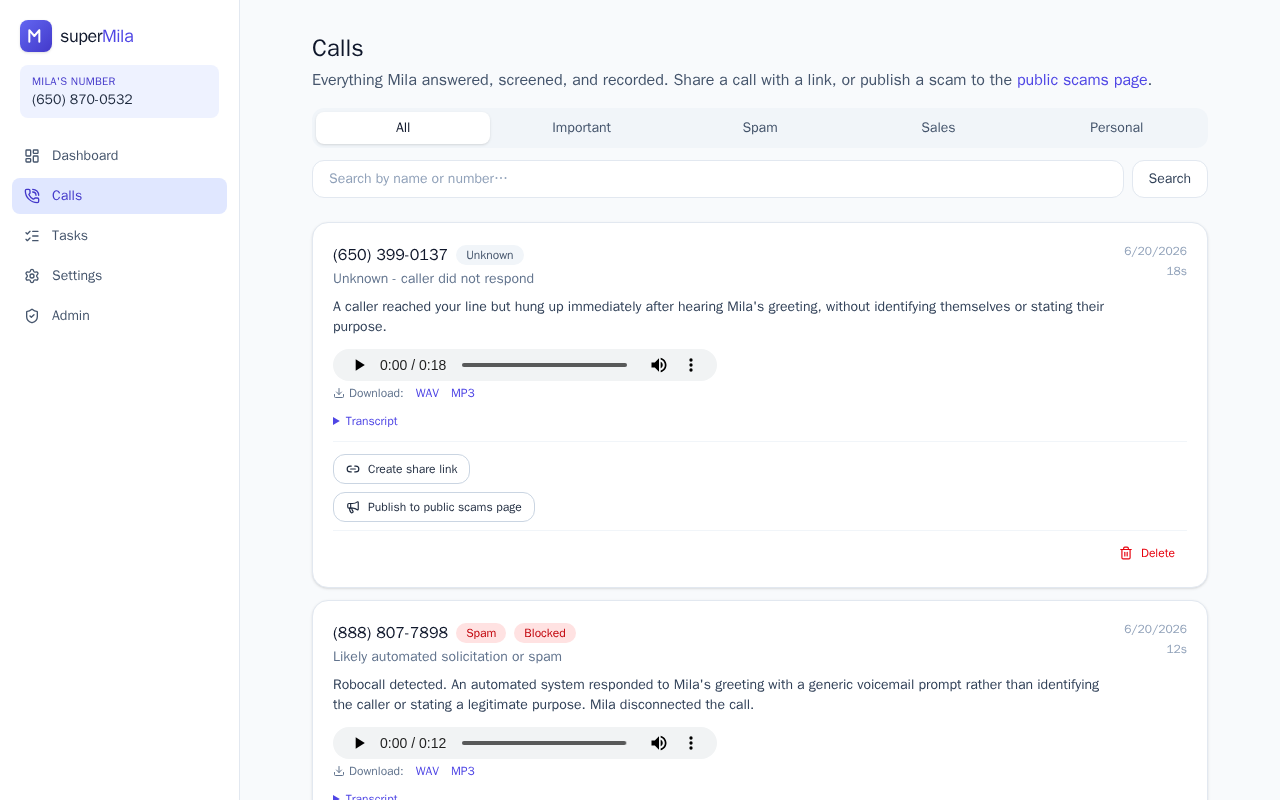
Your Calls Page at a Glance
The Calls page — accessible from the main navigation menu — is your complete record of every incoming call Mila has answered and screened on your behalf. Each call appears as a card showing:
- The caller's name, or their phone number if they're not recognized
- A category badge (such as scam, spam, sales, personal, important, or unknown)
- A status badge if the call was blocked
- The reason Mila screened or blocked the call (when available)
- A brief summary of why the caller was reaching out
- The time the call came in and how long it lasted
If you have many calls, the page supports pagination so you can browse through your full history.
Finding a Specific Call
At the top of the Calls page, a filter and search bar lets you quickly narrow down your list. You can search by keyword, or filter by category (such as spam or scam) and by status (such as blocked). Scroll through the results to find the call you're looking for.
Reviewing a Call in Detail
Once you've found a call, you can dig into its full details directly from the call card:
- Navigate to Calls from the main menu.
- Use the search bar or filters to locate the call, or scroll to find it.
- On the call card, review the caller name, category badge, status, and screening reason.
- If a recording is available, click the recording player on the card to listen to it.
- If a transcript was captured, expand the Transcript section to read the full conversation.
The timestamp tells you when the call arrived, and the duration shows how long the conversation lasted.
Sharing a Call
You can share any call with a colleague, friend, or family member by creating a shareable link:
- Go to Calls and find the call you want to share.
- Click the Share option on the call card.
- Copy the shareable link that is generated.
- Send the link to whoever you'd like — they can click it to view the call details, read the transcript, and listen to the recording.
Reporting a Scam or Spam Call
If you spot a suspicious call in your history, you can help protect other users by publishing it to the community:
- Go to Calls and find the suspicious call using search or filters.
- Click the Share options on the call card.
- Choose to publish it to the public scams page. This makes the call visible to the broader community to help warn others about the number and type of scam — without exposing your personal details.
Deleting a Call from Your History
If you want to remove a call from your record, you can delete it directly from its call card on the Calls page. Deleted calls are removed from your history.
Turning a Call into a Follow-Up Task
When an important call comes in, Mila may automatically offer to create a task for you so you don't forget to follow up. You can also create tasks manually at any time from the Tasks section. Here's how it works:
- When Mila offers to create a task after a call, accept her suggestion — or go to the Tasks section and create a new task yourself.
- Enter a title for the task and add any details about what you need to do.
- Set a priority level: low, normal, or high.
- Save the task. It will be linked back to the original call, so you can always open the transcript to review what was discussed.
- As you work through your tasks, update the status to open, done, or dismissed.