How superMila Screens Calls and Blocks Spam
Learn how superMila automatically detects and blocks unwanted callers, how to fine-tune spam sensitivity, and how to review screened calls in your inbox.
Last updated July 6, 2026
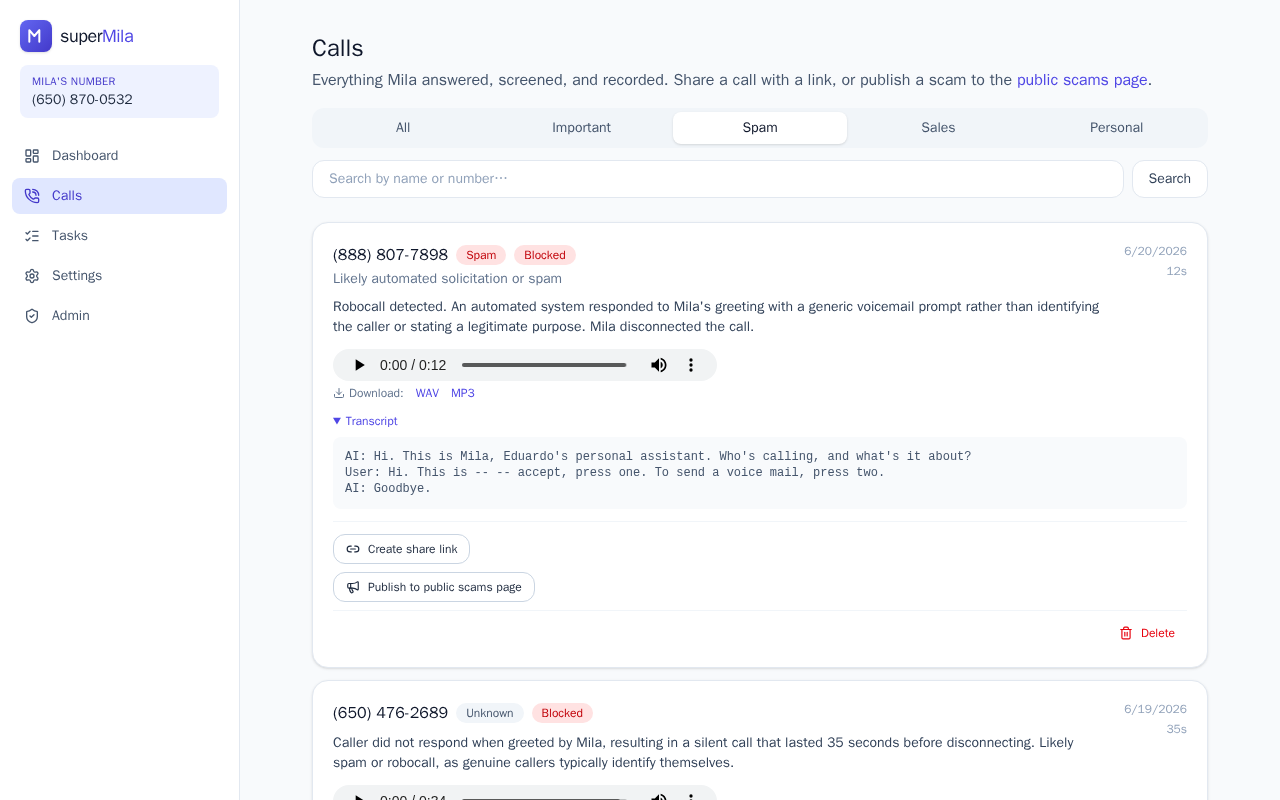
How call screening works
When a call comes in that you don't answer, superMila picks it up automatically on your behalf — no action needed from you. While handling the call, superMila screens it in real time to determine whether it looks like spam, a robocall, or a scam attempt. If the call is identified as spam, it is blocked politely without ever interrupting you. Legitimate callers are greeted normally and invited to leave a message.
This screening happens entirely in the background. Your callers always reach you through your existing phone number, and no special app is required on their end.
How spam detection improves over time
superMila learns from patterns across your calls over time, getting better at recognizing repeat spam sources and protecting you from new ones. You don't need to do anything to benefit from this — the system improves automatically as it handles more calls.
How calls are categorized
Every call superMila handles is assigned a category — such as Spam, Sales, Personal, or Important — so you can understand at a glance what kind of call came in. You can see these labels when you open a call record. If superMila's categorization isn't quite right, you can manually override it on the individual call.
Adjusting spam sensitivity
You can control how aggressively superMila filters spam to match your preferences:
- Go to Settings and open Call Behavior.
- Find the Spam Sensitivity option.
- Choose one of three levels:
- Lenient — lets more calls through; fewer false positives.
- Balanced — a middle-ground setting suitable for most people.
- Strict — catches more spam, but may occasionally flag a legitimate call.
- Save your changes. superMila will apply the new setting to all future calls.
You can return and adjust this setting anytime.
Blocking specific numbers manually
If you want to make sure a particular number is always declined — regardless of spam detection — you can add it to your blocked contacts list:
- Go to Settings and open Contacts.
- Add a new contact and enter the phone number you want to block.
- Optionally add a label so you remember who it is.
- Select Blocked and save.
From that point on, superMila will politely decline calls from that number. You can remove the block anytime by returning to Settings > Contacts.
Reviewing screened and missed calls
After superMila handles a call, a record appears in your Calls section. Open any call to see:
- The caller's phone number and how long they spoke
- A plain-language summary of their message
- The full transcript of what they said
- The category superMila assigned (including a spam flag if applicable)
- Any follow-up tasks automatically created from the call
Based on what you read, you can decide whether to call back, mark the call as spam to help train superMila, or take any follow-up action needed.
Keeping track of spam over time
If you are on a Pro plan and have the weekly digest enabled, you will receive a weekly email summary that includes how many spam calls superMila blocked and an estimate of the time you saved. You can manage digest preferences in Settings > Notifications.