Configuring Your Call Settings, Greeting, and Spam Sensitivity
Learn how to set up call forwarding, personalize your caller greeting, tune spam filtering, and manage VIP and blocked contacts in Mila.
Last updated July 6, 2026
Overview
Mila's Settings page is where you control every aspect of how your calls are handled — from routing calls through Mila for screening, to crafting the greeting callers hear, to deciding how aggressively spam is filtered. This guide walks you through each area so you can tailor Mila to your preferences.
Opening Settings
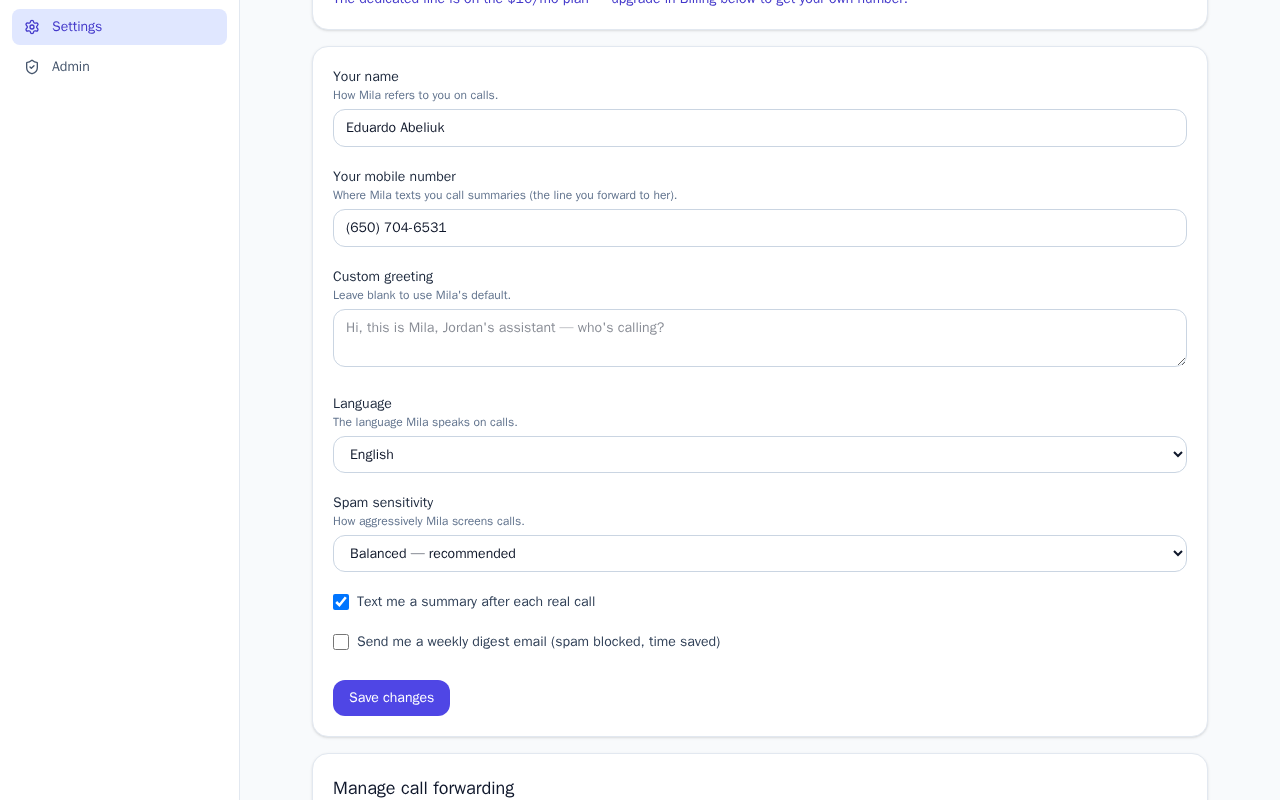
Select Settings from the main navigation menu. Most of the options described in this guide live inside the Call Handling & Preferences section on that page. Changes throughout this section save automatically as you make them — you do not need to click a separate save button.
Setting Up Call Forwarding
For Mila to screen your calls, your phone carrier must forward incoming calls to your Mila phone number. Here's how to get that configured:
- Open Settings from the main menu.
- In the Call Handling & Preferences section, enter your personal phone number. This is the number Mila will forward accepted calls to after screening.
- Scroll down to the Call Forwarding Guide section. This guide provides step-by-step instructions tailored to your specific phone carrier.
- Follow the carrier-specific steps to activate call forwarding on your phone.
- Once complete, test it by having someone call your number — Mila should answer and screen the call before it reaches you.
Your Mila phone number and your current number mode (shared or dedicated, depending on your account tier) are also displayed in Settings for easy reference.
Customizing Your Caller Greeting
You can personalize the message callers hear when Mila picks up on your behalf.
- Open Settings and go to Call Handling & Preferences.
- Locate the custom greeting field.
- Type the greeting message you'd like callers to hear.
- Your greeting saves automatically — no extra step needed.
Adjusting Spam Filtering Sensitivity
Mila screens calls for spam automatically, but you can control how strict that filtering is using a sensitivity slider in Call Handling & Preferences.
- Open Settings and go to Call Handling & Preferences.
- Find the spam sensitivity slider.
- Move the slider toward stricter to block more potential spam calls, or toward more lenient to allow borderline calls through to you.
- Your preference saves automatically.
If you find that legitimate callers are being blocked, try moving the slider in the more lenient direction. If you're receiving too many unwanted calls, move it toward stricter.
Managing VIP and Blocked Contacts
For specific phone numbers where you want to override Mila's default screening entirely, use the Contacts & Rules section of Settings.
- VIP list: Numbers added here will always be put through to you, regardless of how Mila's screening would normally handle them.
- Blocked list: Numbers added here will always be rejected automatically, without any screening.
To manage these lists:
- Open Settings and navigate to Contacts & Rules.
- Add a phone number to either the VIP list or the blocked list depending on your preference.
- Save your contact rules.
Rules you set here take priority over Mila's standard spam-screening behavior for those specific numbers.
Other Preferences in Call Handling & Preferences
While in the Call Handling & Preferences section, you can also:
- Enter your real name, which helps Mila identify you to callers.
- Choose your preferred language or locale.
- Toggle SMS alerts on or off to control whether you receive text notifications about calls.
- Toggle weekly digest summaries on or off to control whether you receive a regular summary of your call activity.